In enterprise environments, adding a signature to a PDF is rarely a simple personal task. Contracts, vendor agreements, NDAs, financial approvals, HR documents, and compliance forms all require signatures that are legally valid, secure, and fully auditable.
Doing it the wrong way — such as printing, signing by hand, and scanning — creates major problems: lost searchability, broken digital workflows, weak legal defensibility, and compliance risks. The right way transforms signing into a fast, secure, trackable process that integrates seamlessly with your document management system and business tools.
This guide shows enterprise teams exactly how to add a signature to a PDF the right way in 2026.
Why the “Right Way” Matters for Enterprises
Modern enterprises handle high volumes of sensitive documents across departments, locations, and external parties. A proper electronic signature process delivers:
- Faster turnaround — Days or weeks reduced to hours
- Stronger compliance — Audit trails, authentication, and legal defensibility
- Better security — No paper copies floating around or unsecured email attachments
- Improved visibility — Real-time tracking of who signed what and when
- Seamless integration — Works inside your DMS, CRM, ERP, or contract lifecycle tools
The wrong methods (basic image stamps in free PDF viewers, email chains with attachments, or wet-ink + scan) create gaps in security, compliance, and efficiency that can lead to disputes, audit failures, or regulatory penalties.
Electronic Signature vs. Digital Signature: Know the Difference
Before choosing a method, understand the two main categories:
| Aspect | Electronic Signature (e-Signature) | Digital Signature (Certificate-based) |
|---|---|---|
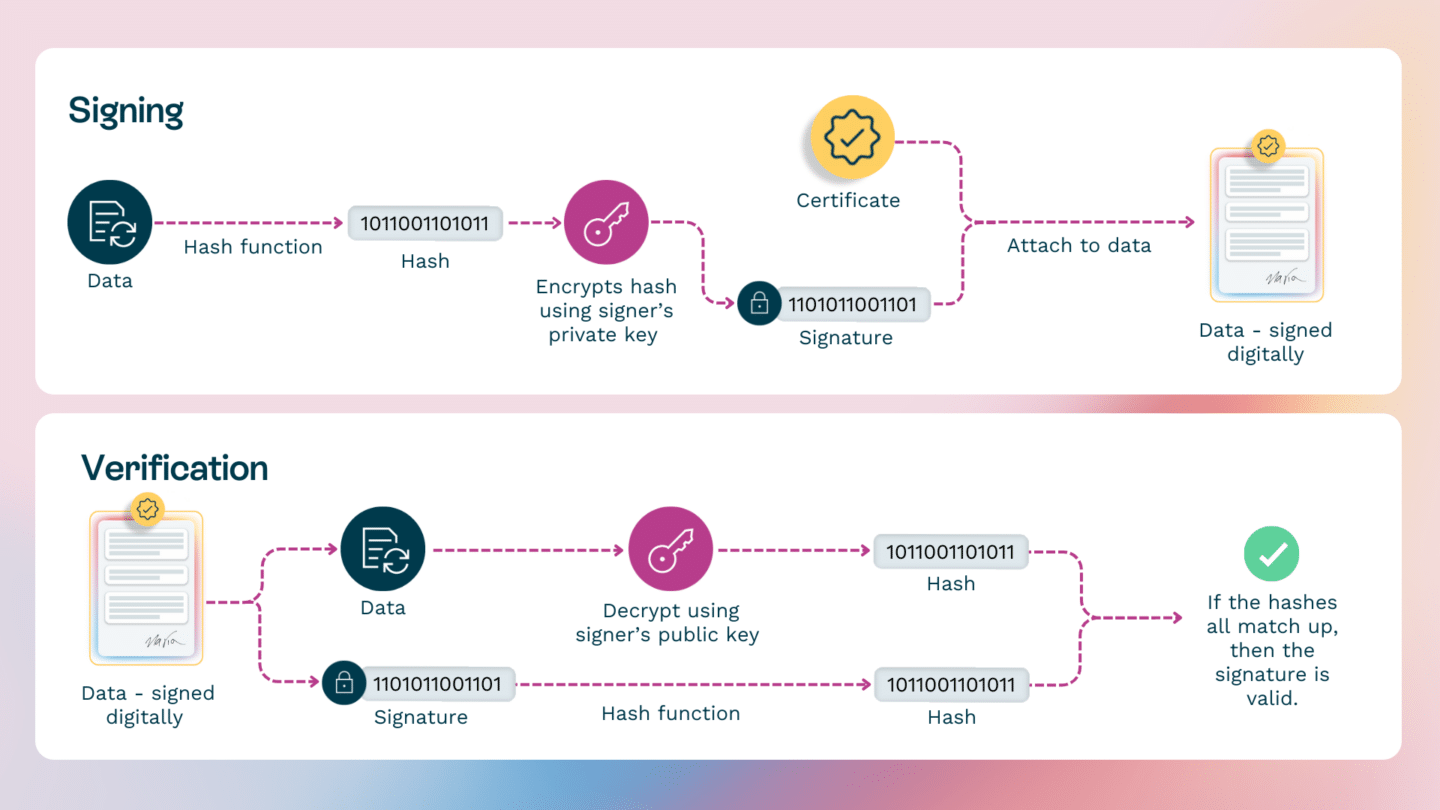
| How it works | Click, type, draw, or upload signature image | Cryptographic process using digital certificates (PKI) |
| Security level | Good (with proper platform & audit trail) | Very high — proves identity and document integrity |
| Legal weight | Legally binding under ESIGN (US) & eIDAS (EU) | Stronger non-repudiation; often meets AES/QES standards |
| Best for | Most business contracts, HR forms, approvals | High-value deals, regulated industries, government |
| Audit trail | Strong when using dedicated platforms | Built-in cryptographic proof + audit trail |
Key takeaway for enterprises: For most internal and commercial documents, a compliant electronic signature platform is sufficient and far more practical. Reserve certificate-based digital signatures for high-stakes or regulated use cases.
The Right Way: Core Best Practices
Here’s how leading enterprises handle PDF signing correctly:
- Use a dedicated, compliant e-signature platform Avoid basic PDF editors that only let you “stamp” an image. Dedicated platforms (DocuSign, Adobe Acrobat Sign, PandaDoc, signNow, etc.) provide authentication, audit trails, templates, and legal compliance out of the box.
- Prepare documents properly Add clear signature fields, date fields, and any required text fields before sending. Use templates for recurring document types.
- Authenticate signers appropriately
- Standard: Email verification
- Higher risk: SMS OTP, knowledge-based authentication, or ID verification
- Highest risk: Certificate-based or qualified signatures
- Require a complete audit trail Every action (view, sign, decline, forward) should be logged with timestamps, IP addresses, and signer details.
- Make signatures visible and professional Include the signer’s name, title, company, date, and reason for signing where appropriate.
- Apply timestamps and long-term validation This protects document integrity over years (critical for contracts and compliance records).
- Integrate with your existing systems Connect signing directly to your Document Management System, CRM, or approval workflows.
Step-by-Step: How to Add a Signature to a PDF the Right Way
Here’s the recommended enterprise workflow using a professional platform (process is similar across DocuSign, Adobe Acrobat Sign, and most leading tools):
- Upload or prepare the PDF Upload the document to your e-signature platform or initiate signing directly from your DMS/CRM.
- Add signature fields and tags Drag signature, date, and text fields onto the document. Assign fields to specific signers and mark required fields.
- Configure the workflow
- Set signing order (sequential or parallel)
- Add authentication requirements
- Include reminders and expiration dates
- Add CC recipients or approval steps if needed
- Send for signature Recipients receive a secure link via email. They can sign from any device (desktop, tablet, or mobile) without creating an account in most cases.
- Sign and complete Signers authenticate, apply their signature (type, draw, or upload), and submit. The platform automatically applies a tamper-evident seal.
- Store and track The completed PDF (with embedded signatures and full audit trail) is automatically saved back to your DMS or designated storage. All parties receive copies, and admins can access detailed reports.
Pro tip: Create reusable templates for contracts, NDAs, vendor onboarding forms, and expense approvals. This dramatically reduces setup time and ensures consistency.
Security & Compliance Considerations
Enterprise teams should prioritize platforms with:
- SOC 2 Type II, ISO 27001, and relevant industry certifications (HIPAA, 21 CFR Part 11, etc.)
- Data encryption in transit and at rest
- Strong access controls and SSO/SAML integration
- Support for regional data residency requirements
- Long-term document archiving and retrieval capabilities
For global operations, confirm support for both ESIGN/UETA (United States) and eIDAS (European Union), including the ability to upgrade to Qualified Electronic Signatures (QES) when required.
Integrating PDF Signing with Your Document Management System
The most efficient enterprise setups connect e-signature directly to the DMS you evaluated in our previous guide. Benefits include:
- Automatic routing of documents from storage → signing → archived signed version
- Consistent metadata and version control
- Centralized audit history across the document lifecycle
- Reduced risk of lost or duplicated files
Many modern DMS platforms have native integrations or strong API connections with leading e-signature tools.
How to Choose the Right E-Signature Solution for Your Team
When evaluating platforms, ask these questions:
- Does it support both simple e-signatures and certificate-based digital signatures?
- How strong and exportable is the audit trail?
- What authentication options are available?
- How well does it integrate with our DMS, CRM, and other core systems?
- What are the total costs (including per-envelope or per-user fees at our volume)?
- Can we create and manage templates easily?
- What compliance certifications and data residency options are offered?
- How user-friendly is the signing experience on mobile devices?
Final Thoughts
Adding a signature to a PDF the right way means moving beyond basic image stamps to a secure, compliant, and fully auditable digital process. For enterprise teams, this isn’t just about convenience — it’s about reducing risk, accelerating business, and maintaining defensible records.
By using a dedicated e-signature platform, following proper authentication and workflow practices, and integrating with your document management system, you can turn signing from a bottleneck into a competitive advantage.
Ready to improve how your team handles PDF signatures? Start by auditing your current process: How many documents are still being printed and scanned? Which document types would benefit most from templates and automation?
If you’d like help evaluating e-signature platforms that integrate well with your existing DMS or need a customized workflow assessment, feel free to reach out.
What types of documents does your team sign most frequently? Share in the comments — we may cover specific workflows in a future post.